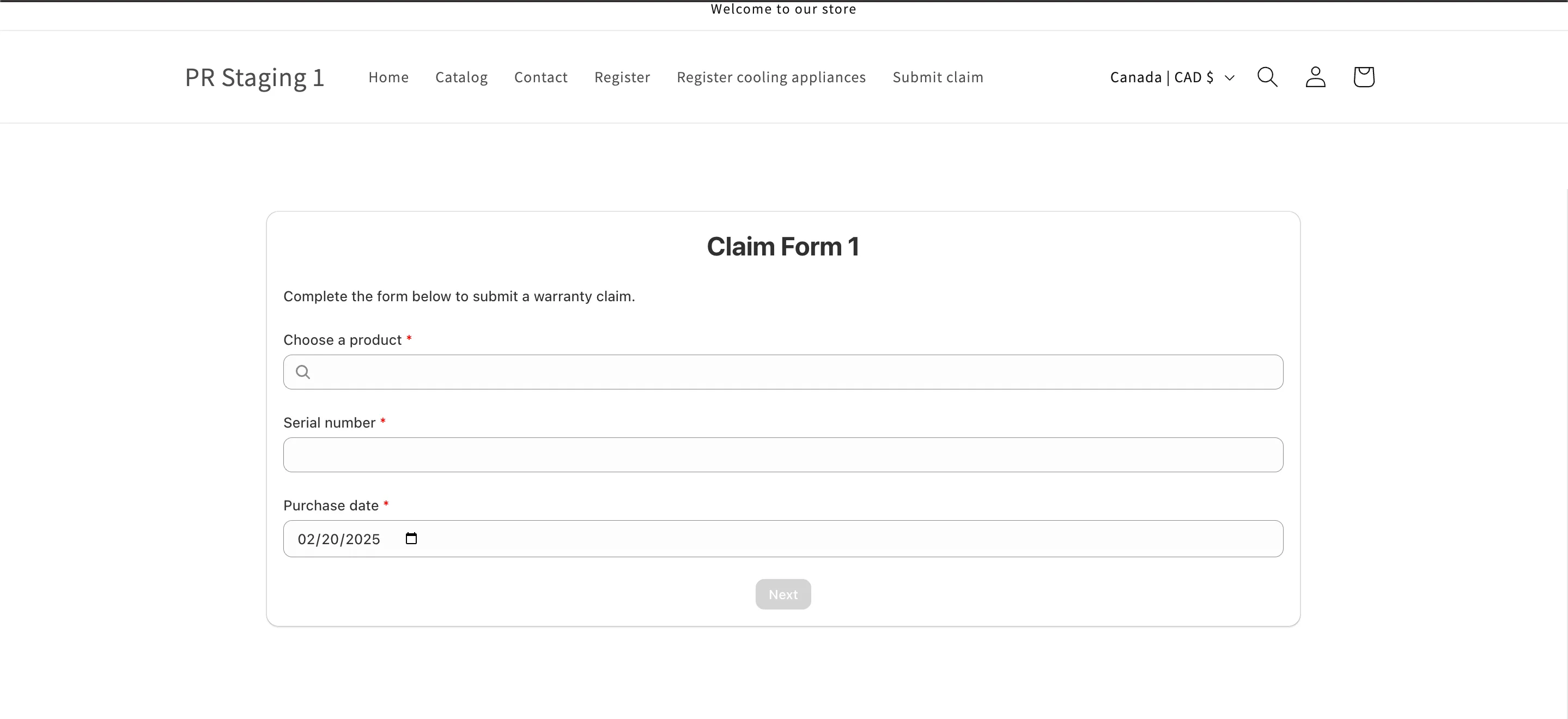
How to add a link to your claims form in your shop's main menu
After you’ve created a claim form, you may want to link to it from your store’s main menu so your customers can access it more easily.
-
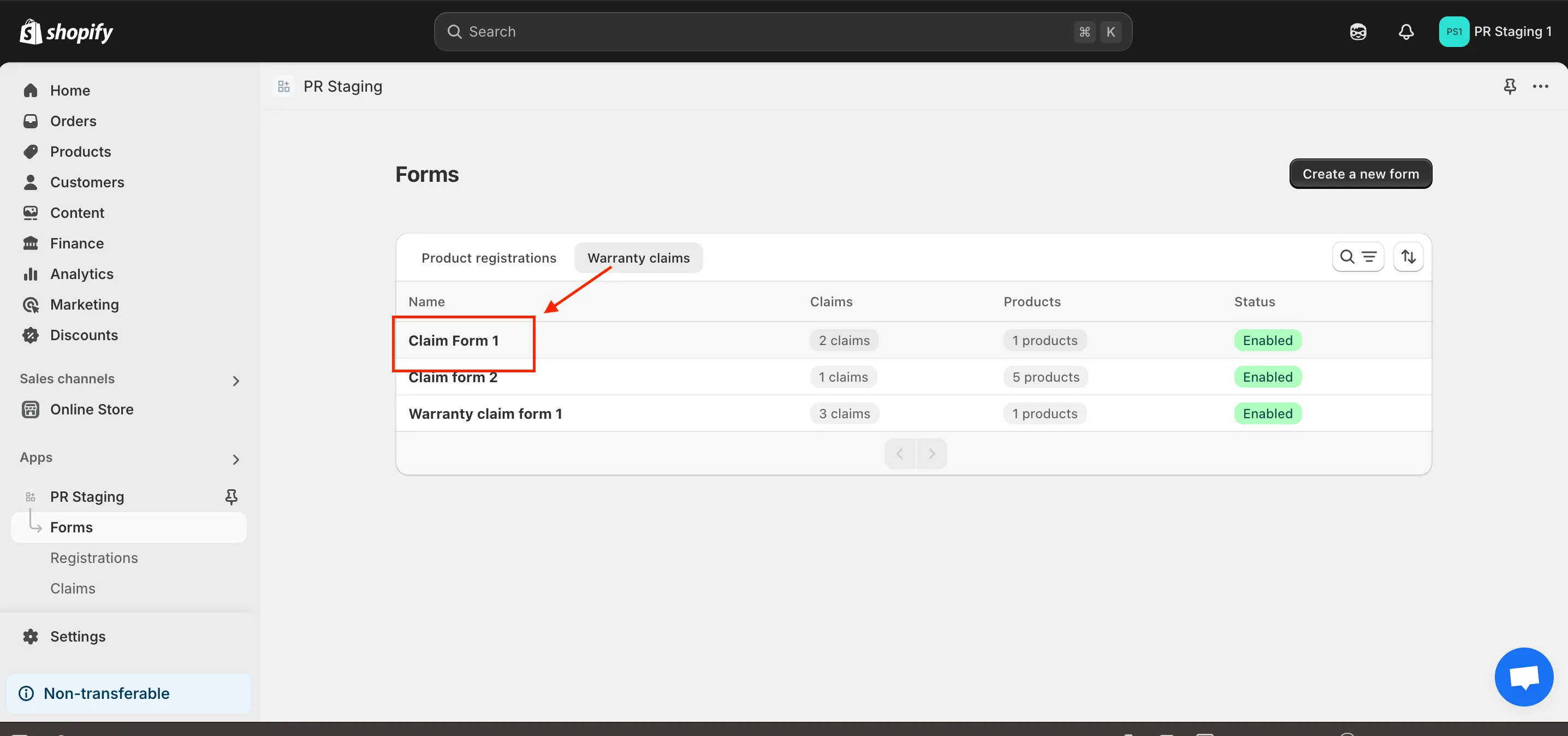
Go to the Forms page in the app then click on your tab to reveal the claim forms in the forms table.
-
When on the claims tab, click on the form to open the page.
-
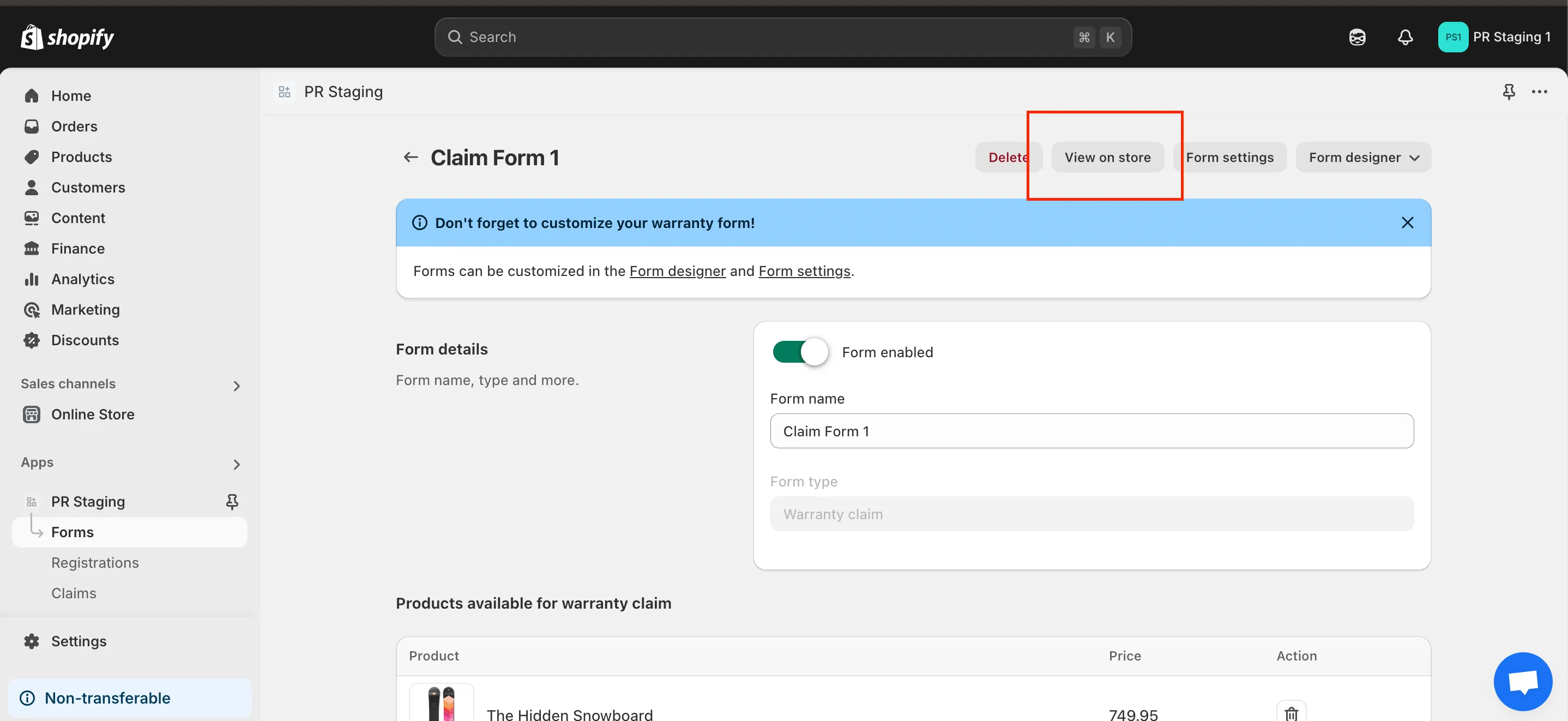
Then click the View on store button at the top of the page.
-
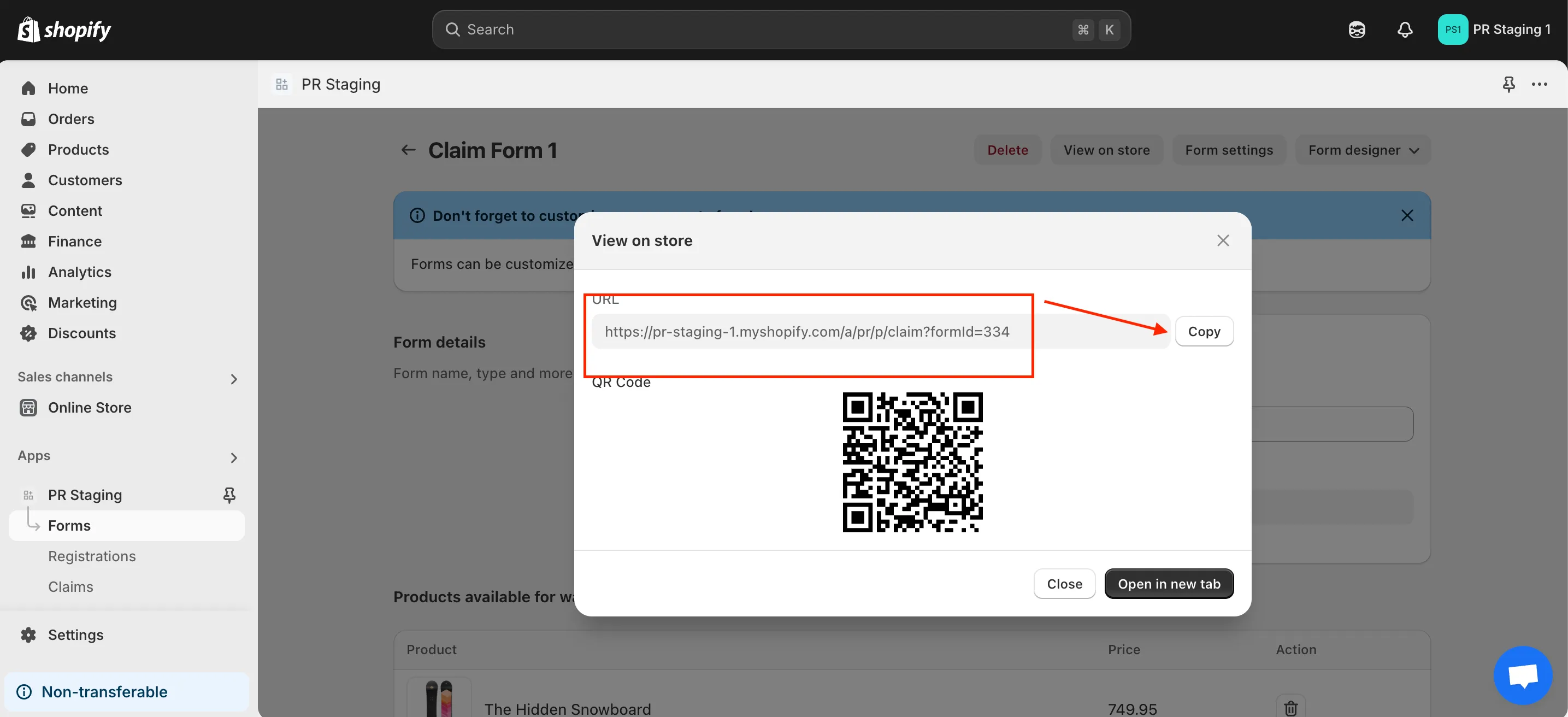
This will launch a popup window that contains the URL to your form. Click the Copy button to copy it.
-
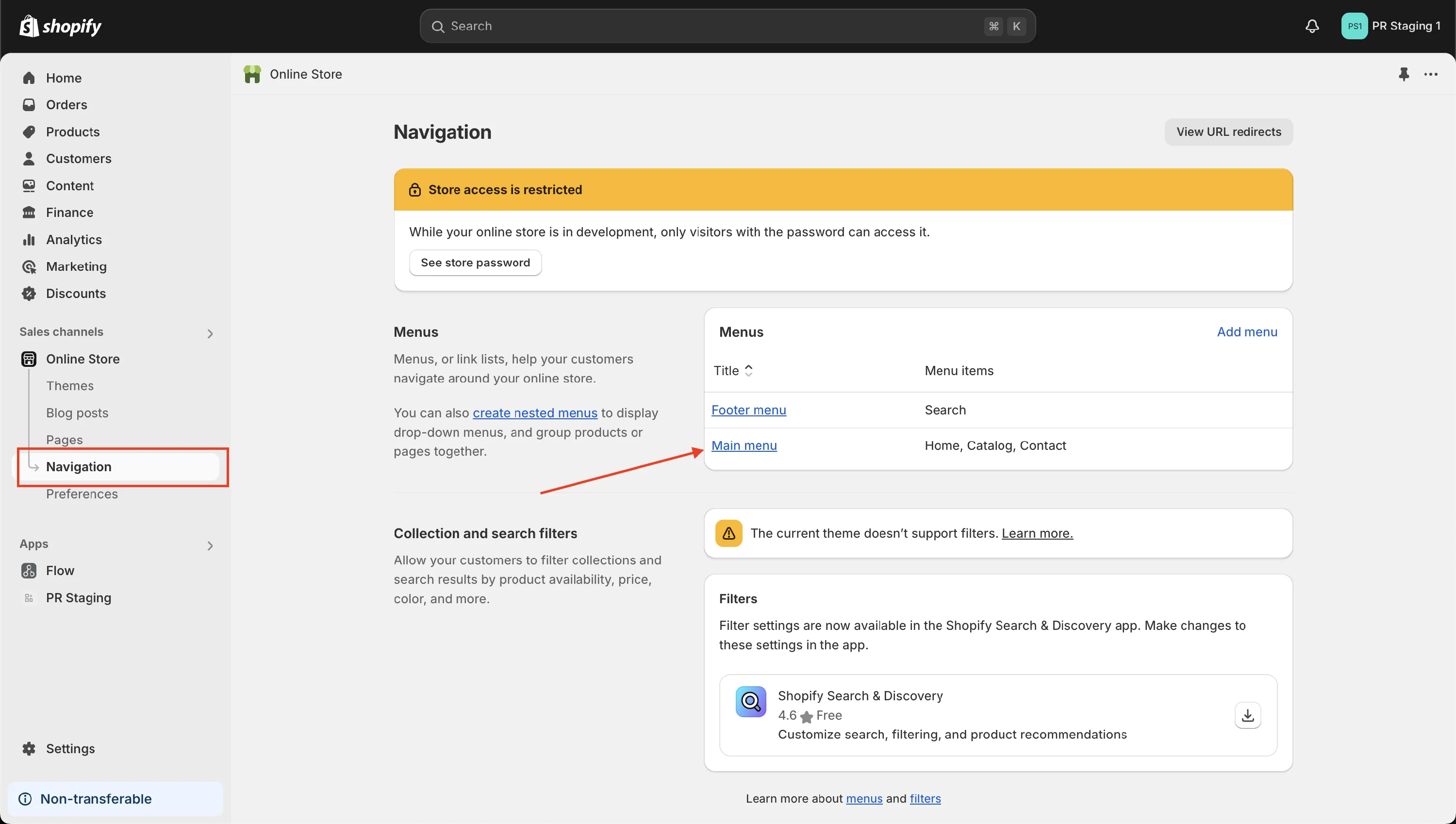
In the Shopify admin panel, click Online Store —> Navigation then click Main menu.
-
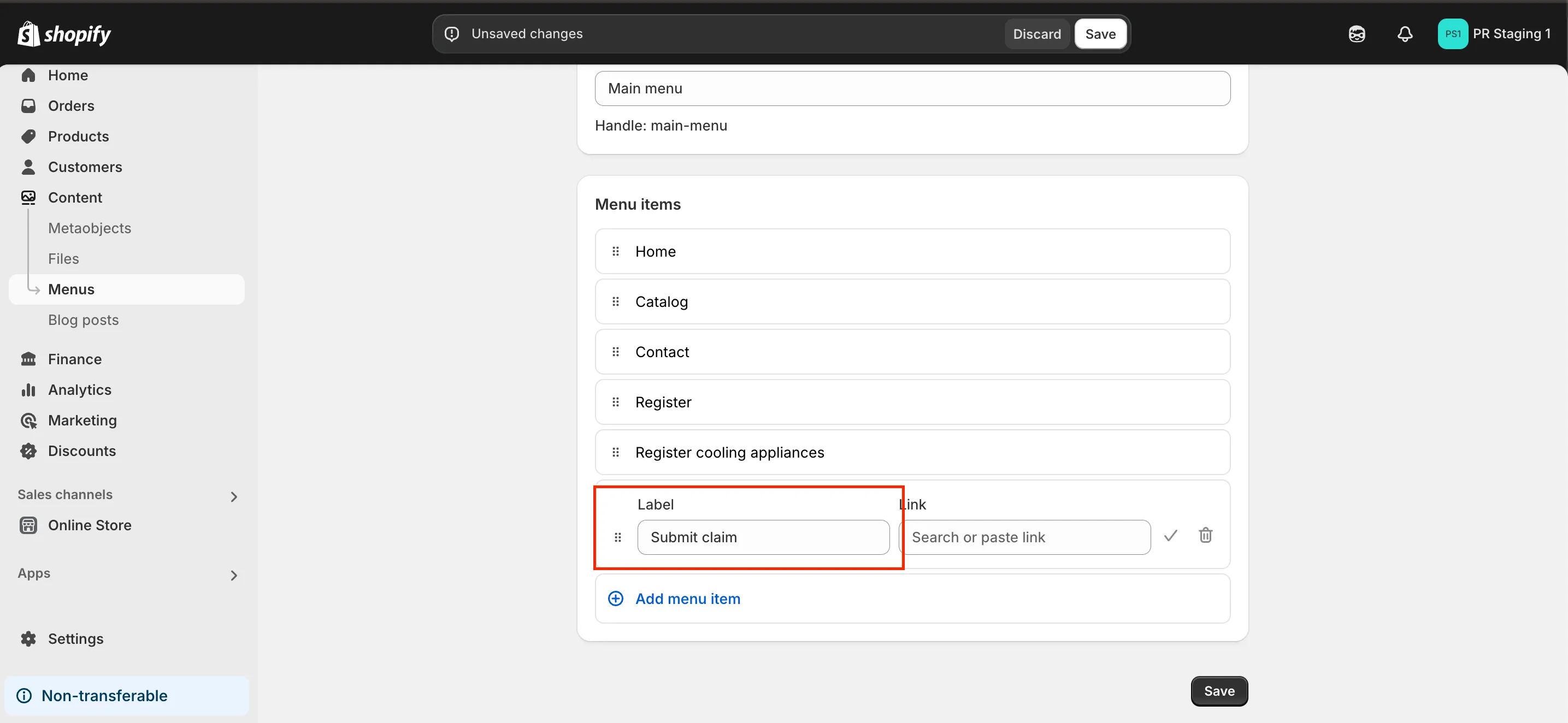
Click the Add menu item then provide a name for this menu item (e.g., Submit claim.) Paste the URL to your form in the URL field then click Add in the bottom right corner.
-
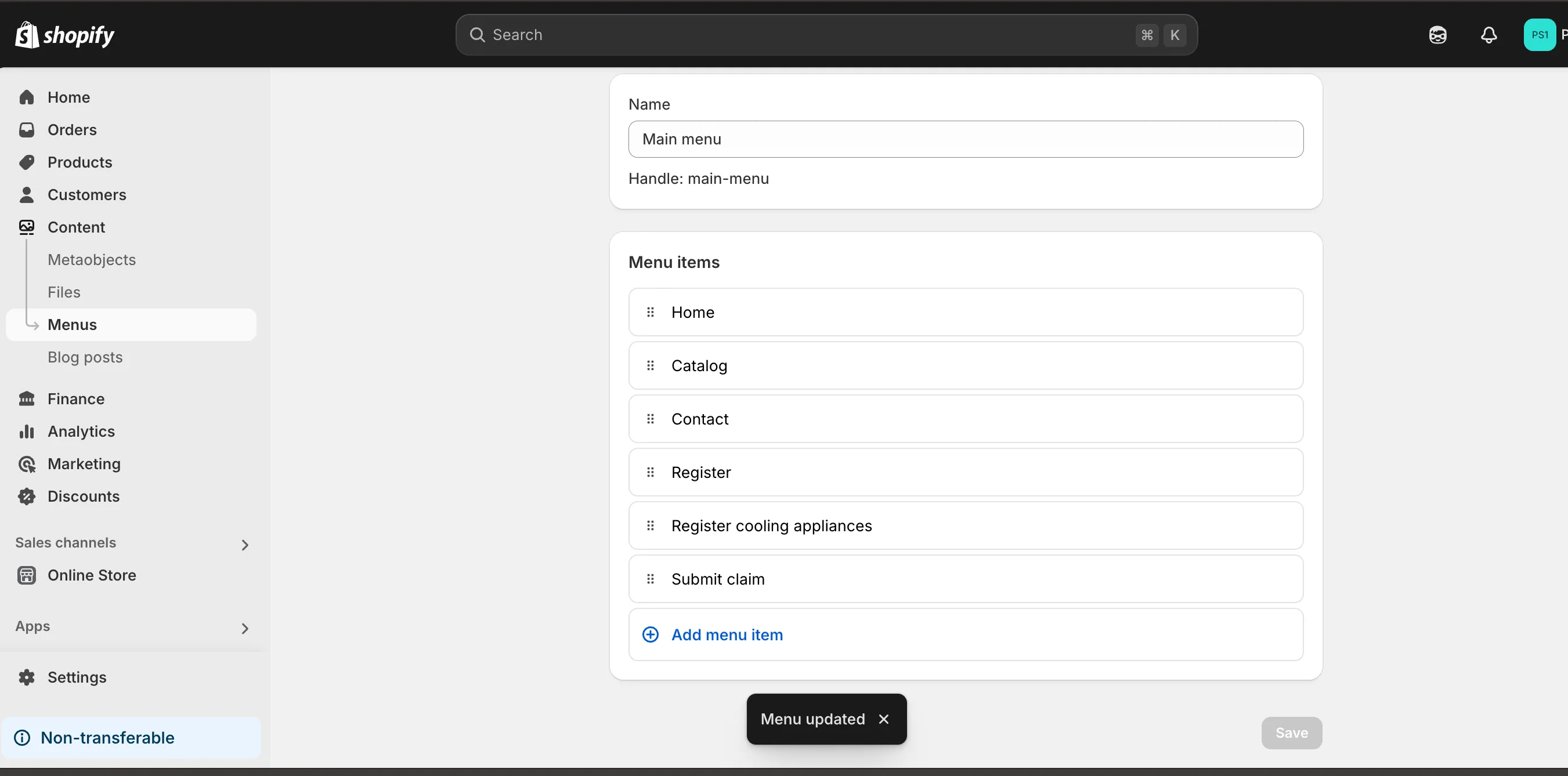
It should look like this once saved.
-
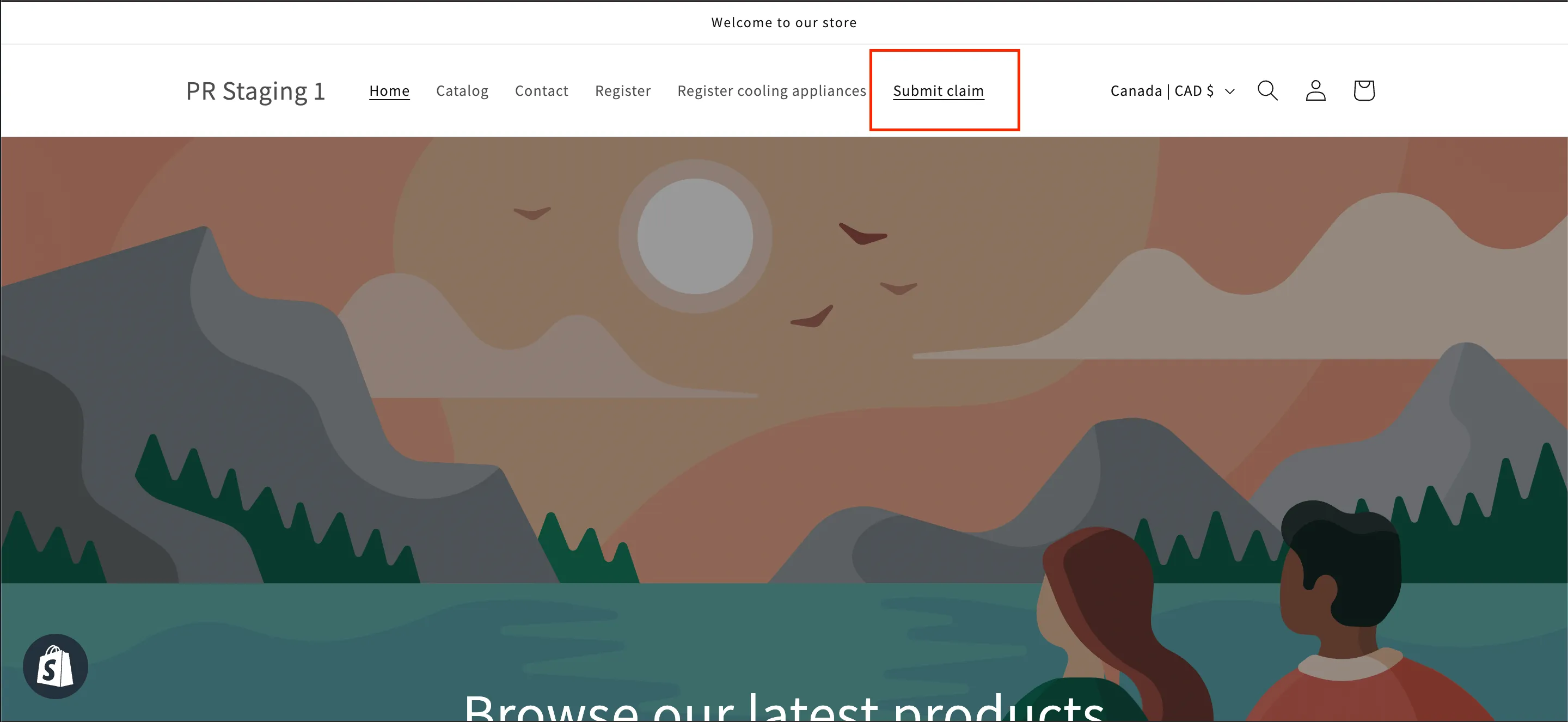
You may check your link in your store.
-
Clicking the link should direct you to the form that you created.