
How do I test Subscriptions Now in an unpublished theme?
Shopify has a feature to duplicate a theme. This is handy if you want to test out apps prior to installing it in your shop’s theme.
Pre-requisite
Section titled “Pre-requisite”Prior to testing this out, at least one subscription plan must have been saved already.
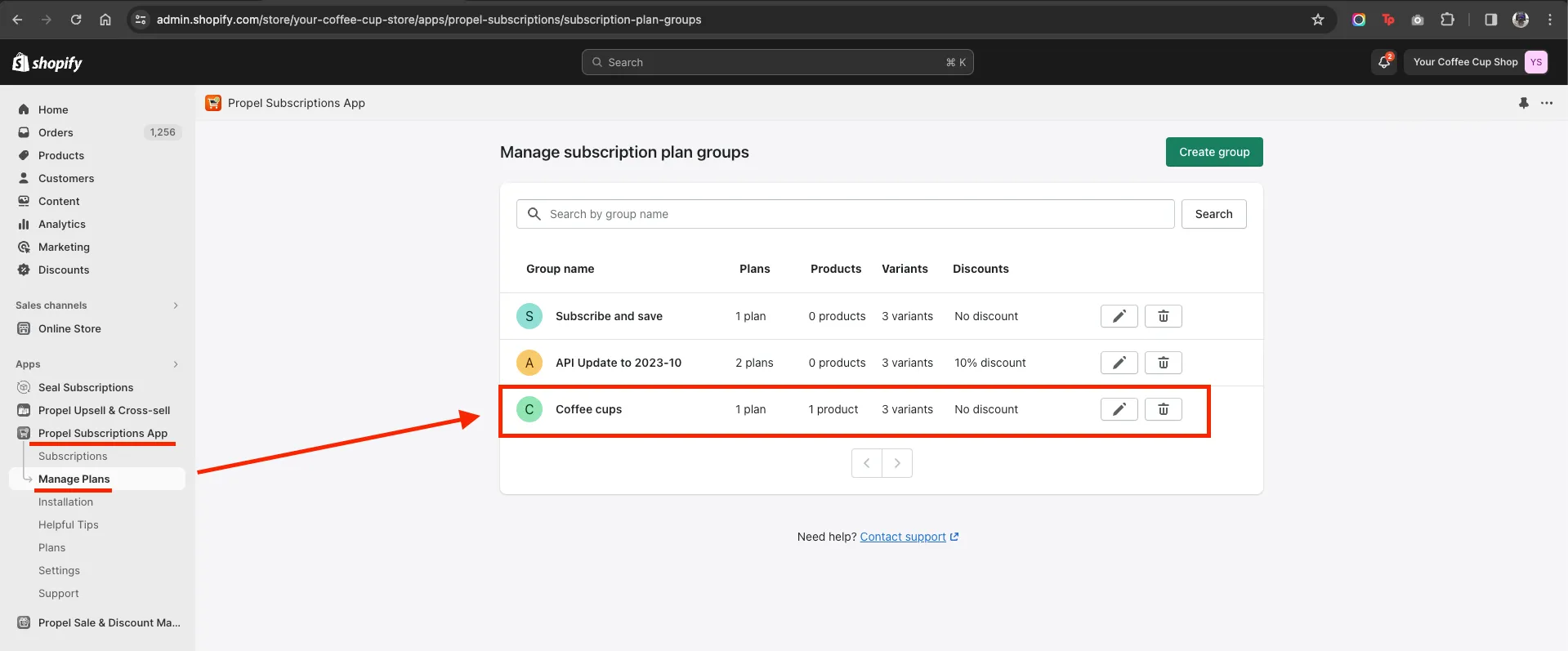
- Go to the app, then Manage Plans.
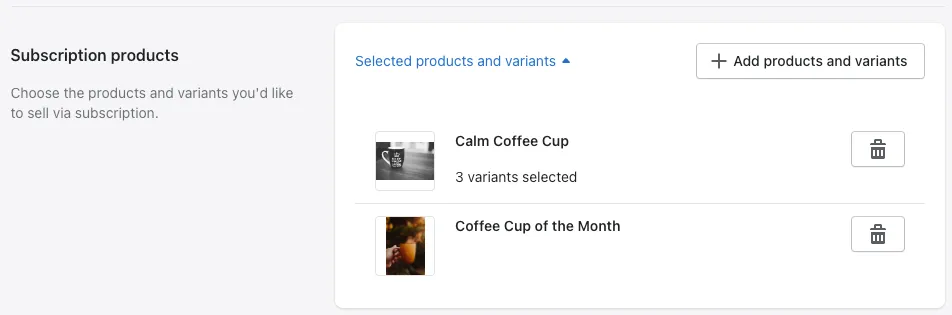
- Open the existing subscription: Coffee cups, then scroll down to Subscription products.
- This is what we can use for testing after installation on the duplicated theme.
Duplicate your theme
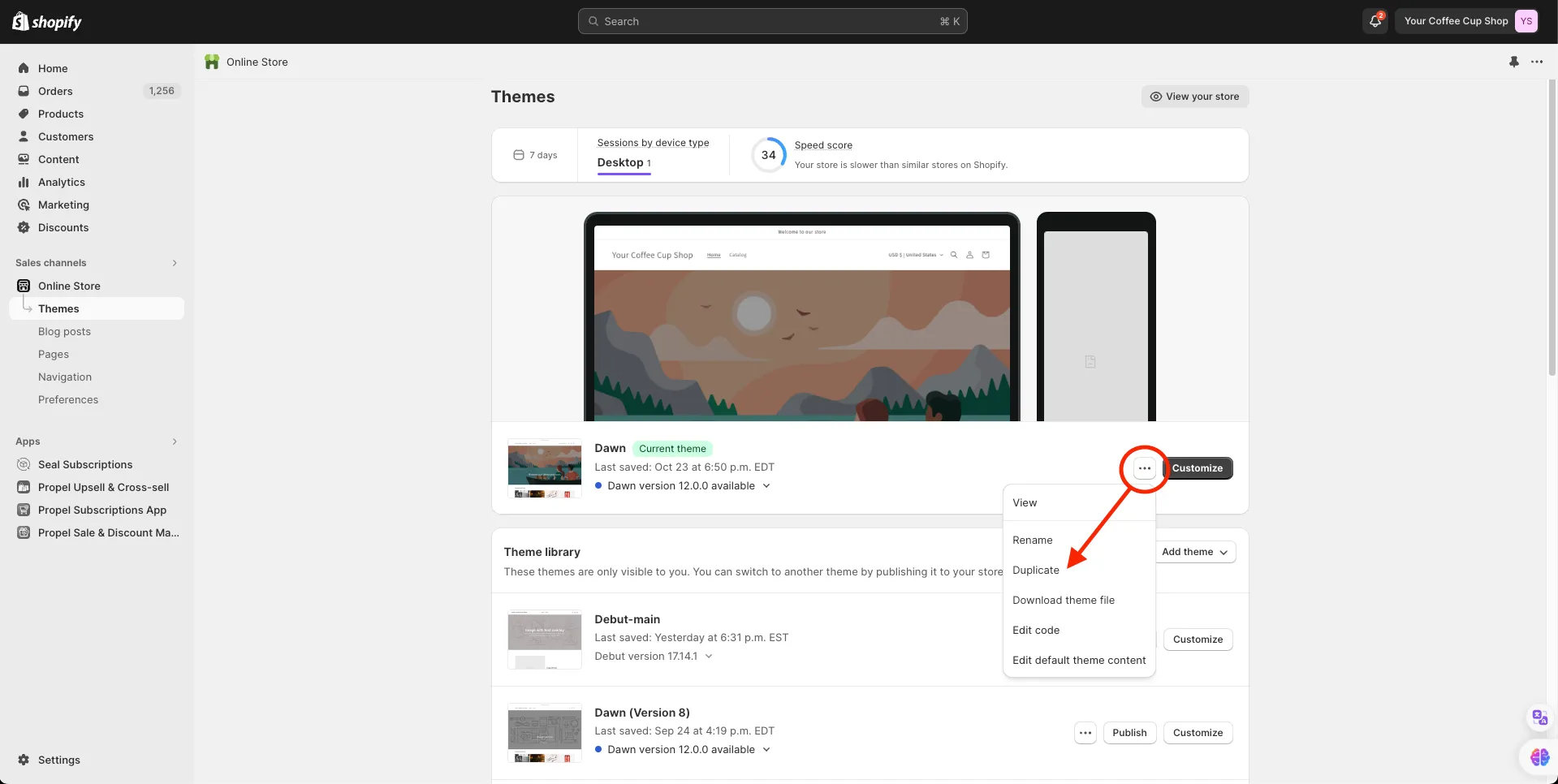
Section titled “Duplicate your theme”- Login to your shop
- Under SALES CHANNELS, click Online Store, then Themes
- Scroll down below to see what other themes are installed aside from the current theme
- In this example, Dawn is the published theme. We’ll duplicate it.
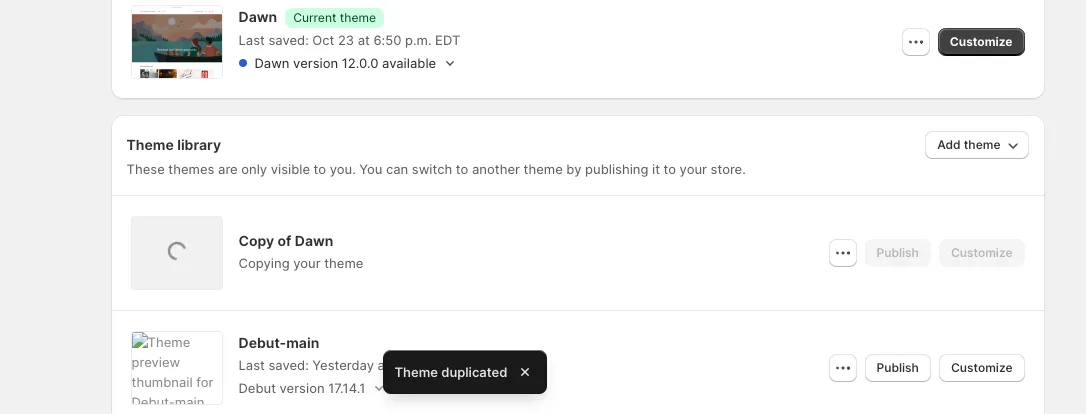
- It should create a new entry: Copy of Dawn
Install in the duplicated theme
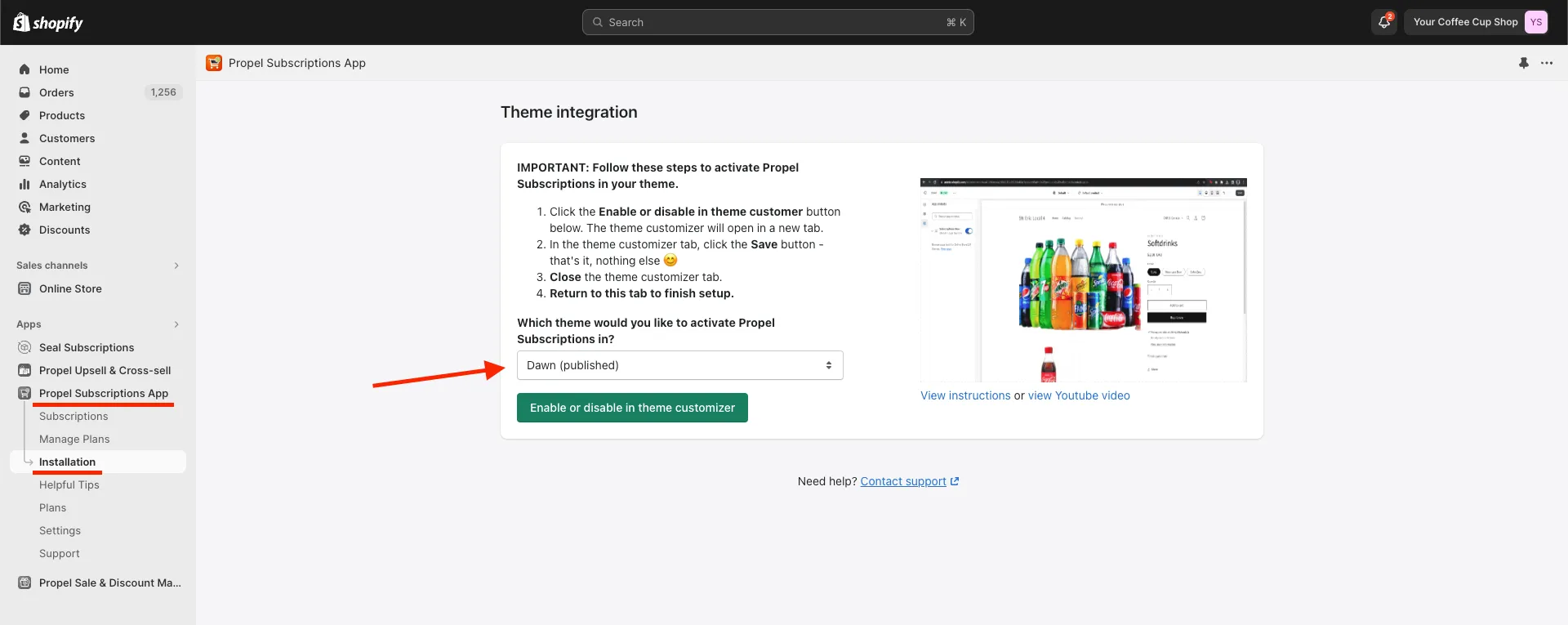
Section titled “Install in the duplicated theme”- Go back to the App then go to Installation.
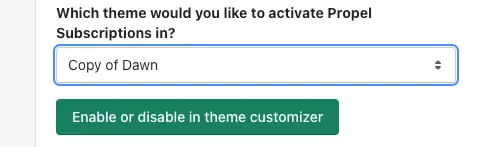
- Make sure to select the Copy of Dawn theme, then click Enable or disable in theme customizer
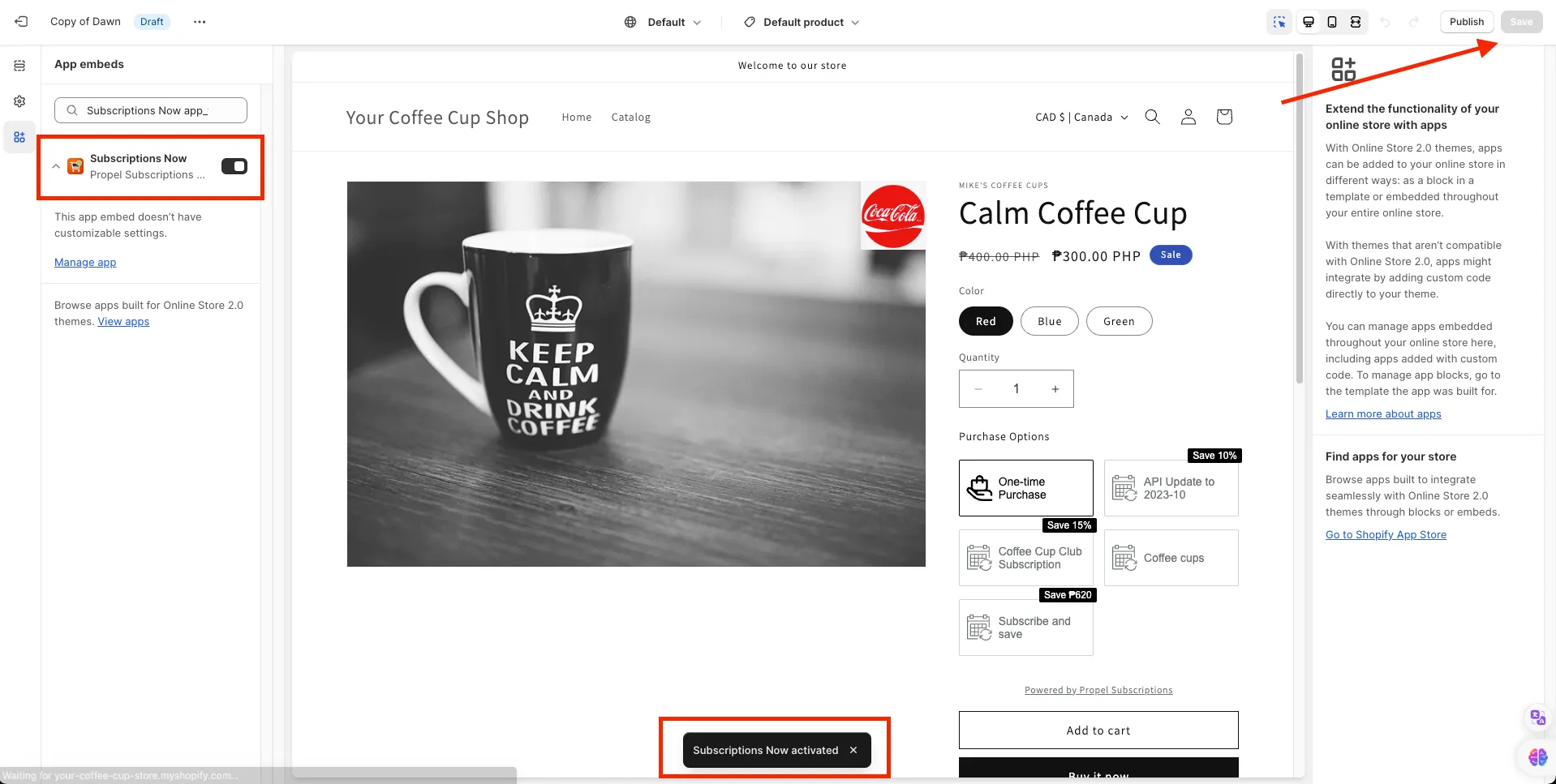
- A new browser window will be opened taking you to Shopify’s Theme Customizer page. Make sure that the Subscriptions Now is toggled and then hit the Save button if it hasn’t been saved yet. You can then close this window.
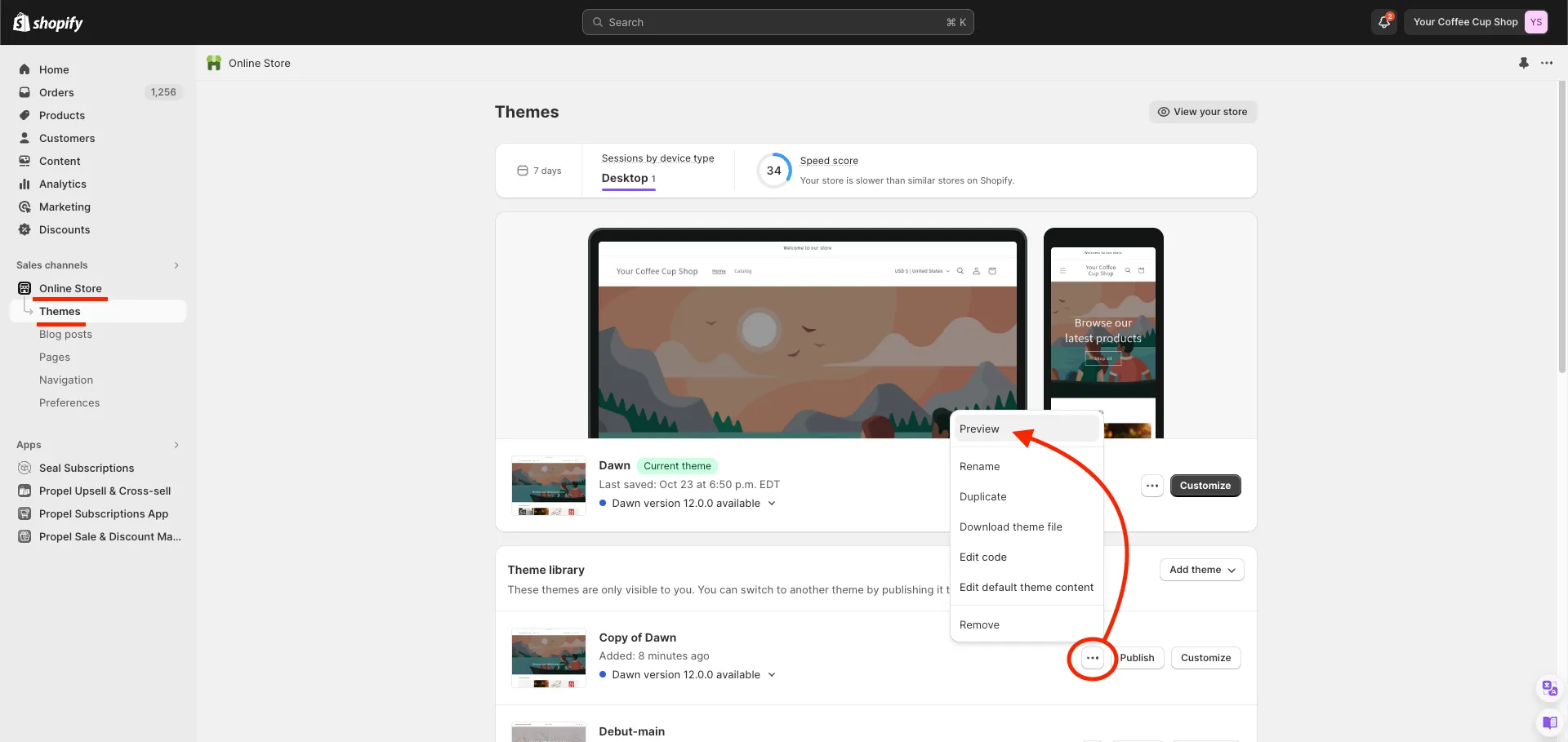
- Go back to the Online Store > Themes, the scroll down to Copy of Dawn. Click the ellipsis, then choose Preview.
- Open a product that is included in any subscription plans (see Pre-requisite steps). It should look like this.
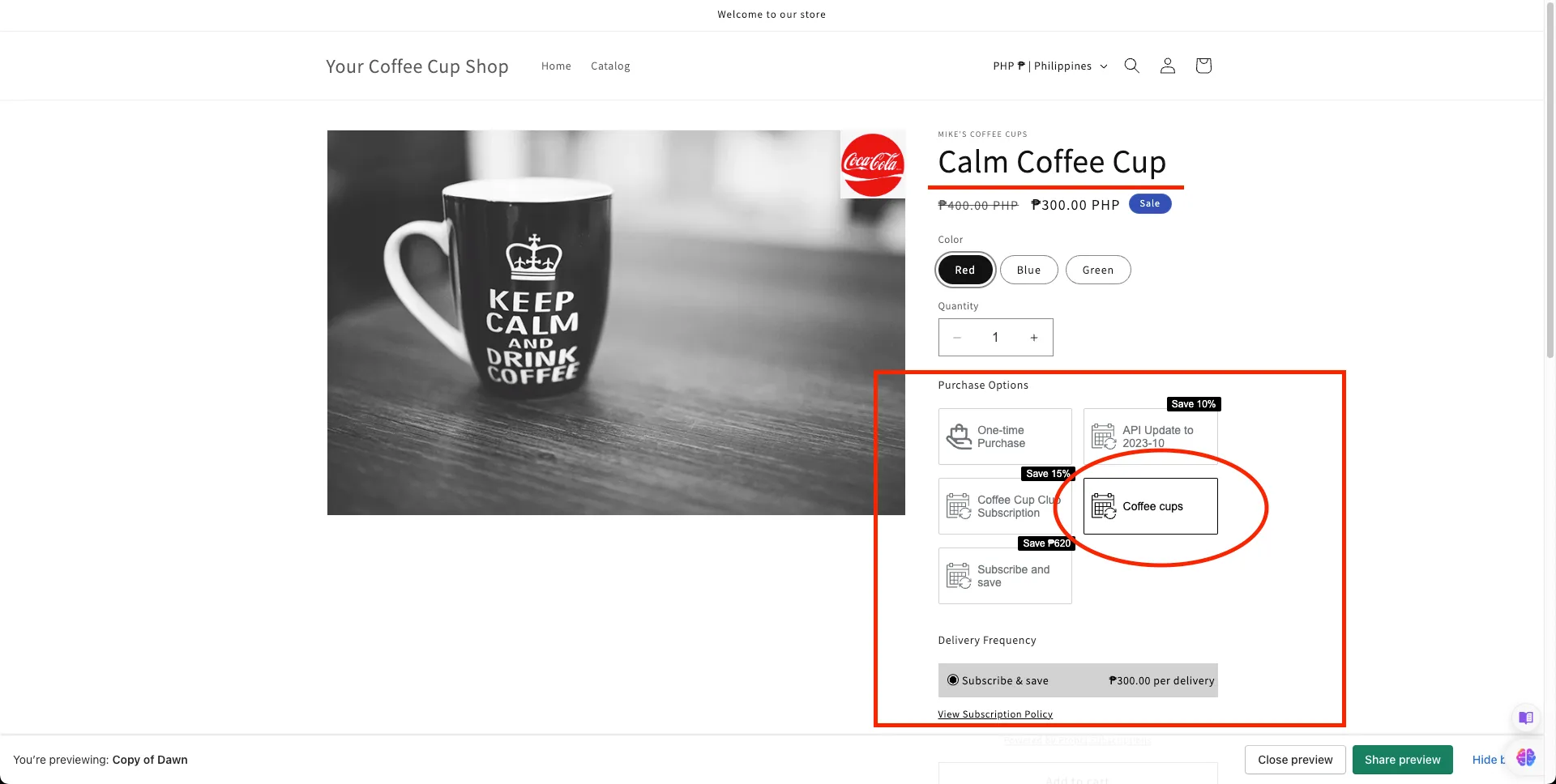
This way, you’ll be able to test how the widget will look like without touching your live store.