
How to Add the Recipes Pro Widget to Your Wix Site
Getting started
Section titled “Getting started”In this article, we’ll cover the following steps to get you going with Recipes Pro:
- Getting to Your Recipes Pro Page in the Wix Editor
- Customizing Your Recipes Widget
- Adding Your Recipes Page to Your Site Menu
- Publishing Your Changes
Check out the demo site to see Recipes Pro in action!
Getting to Your Recipes Pro Page in the Wix Editor
Section titled “Getting to Your Recipes Pro Page in the Wix Editor”After installing Recipes Pro, a new Recipes page is automatically added to your site.
1. Open the Wix Editor
Section titled “1. Open the Wix Editor”-
Open your site in the Wix Editor.
-
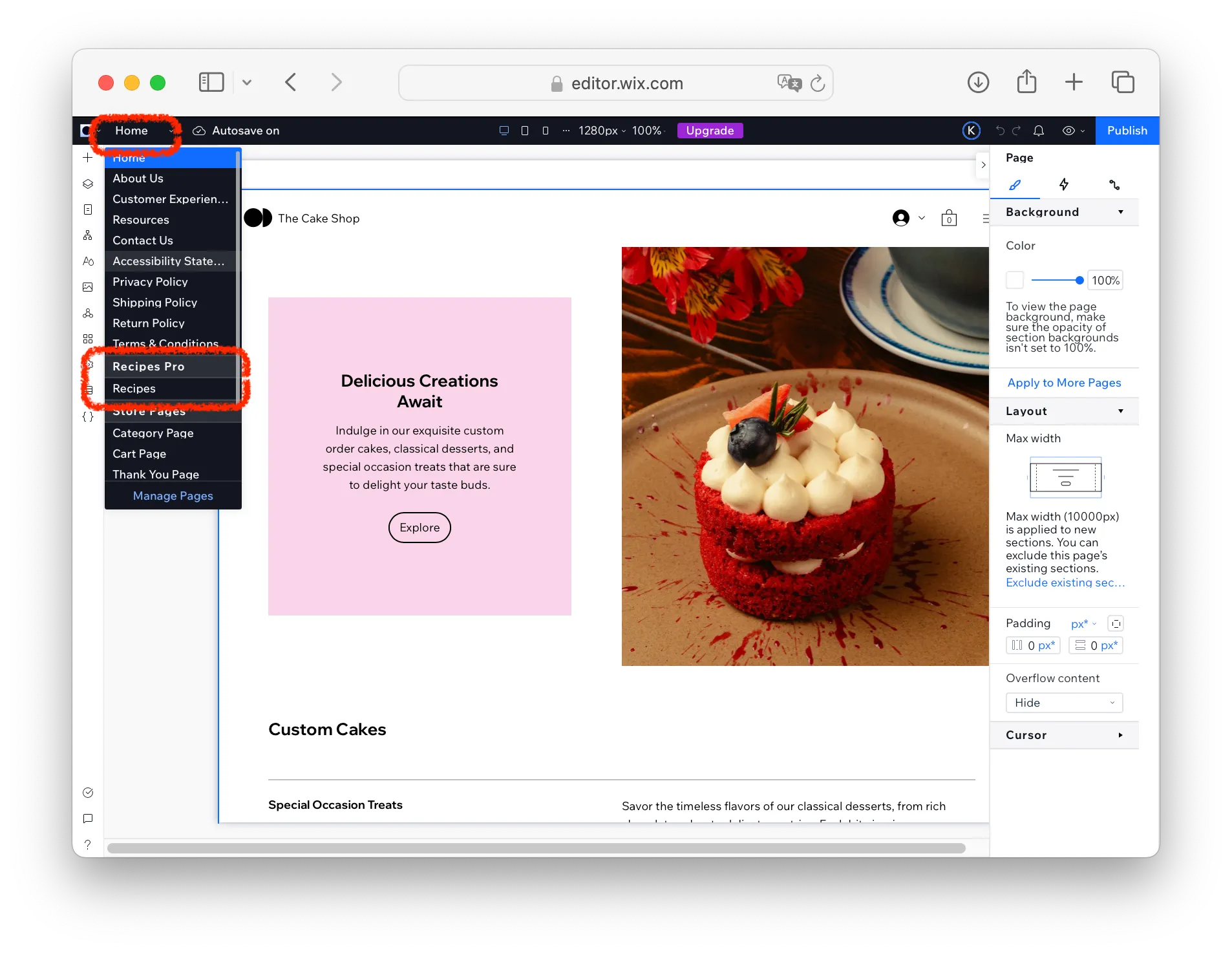
In the top-left corner, use the page navigation menu to go to:
Recipes Pro > Recipes
You’ll see the Recipes Pro widget already added to the page.
Customizing Your Recipes Widget
Section titled “Customizing Your Recipes Widget”You can personalize how your recipes are displayed:
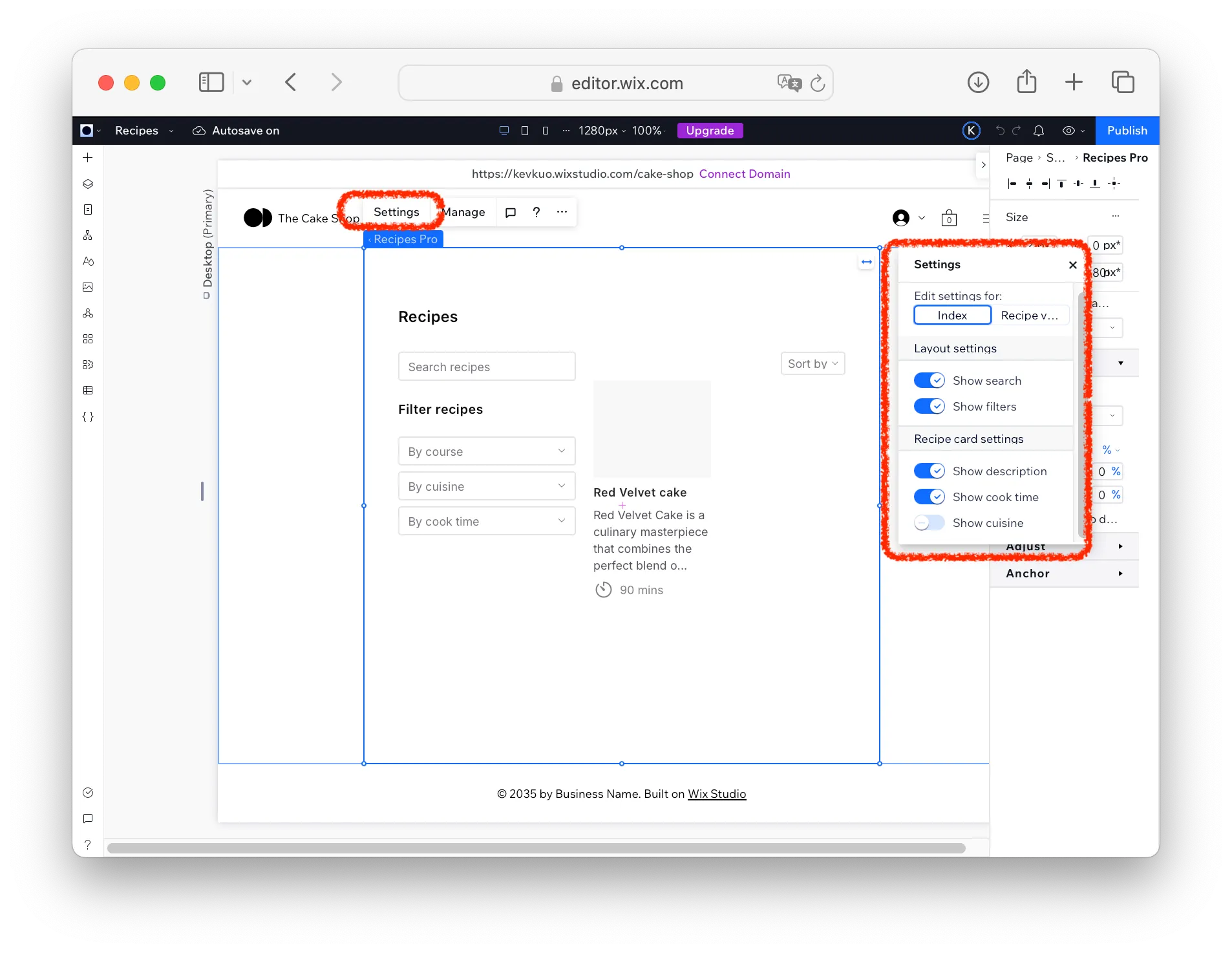
- Click on the Recipes Pro widget on the page.
- Click Settings.
- Adjust the layout and display options to match your style.
Adding Your Recipes Page to Your Site Menu
Section titled “Adding Your Recipes Page to Your Site Menu”Want visitors to easily find your recipes? Add the Recipes page to your site’s main menu:
-
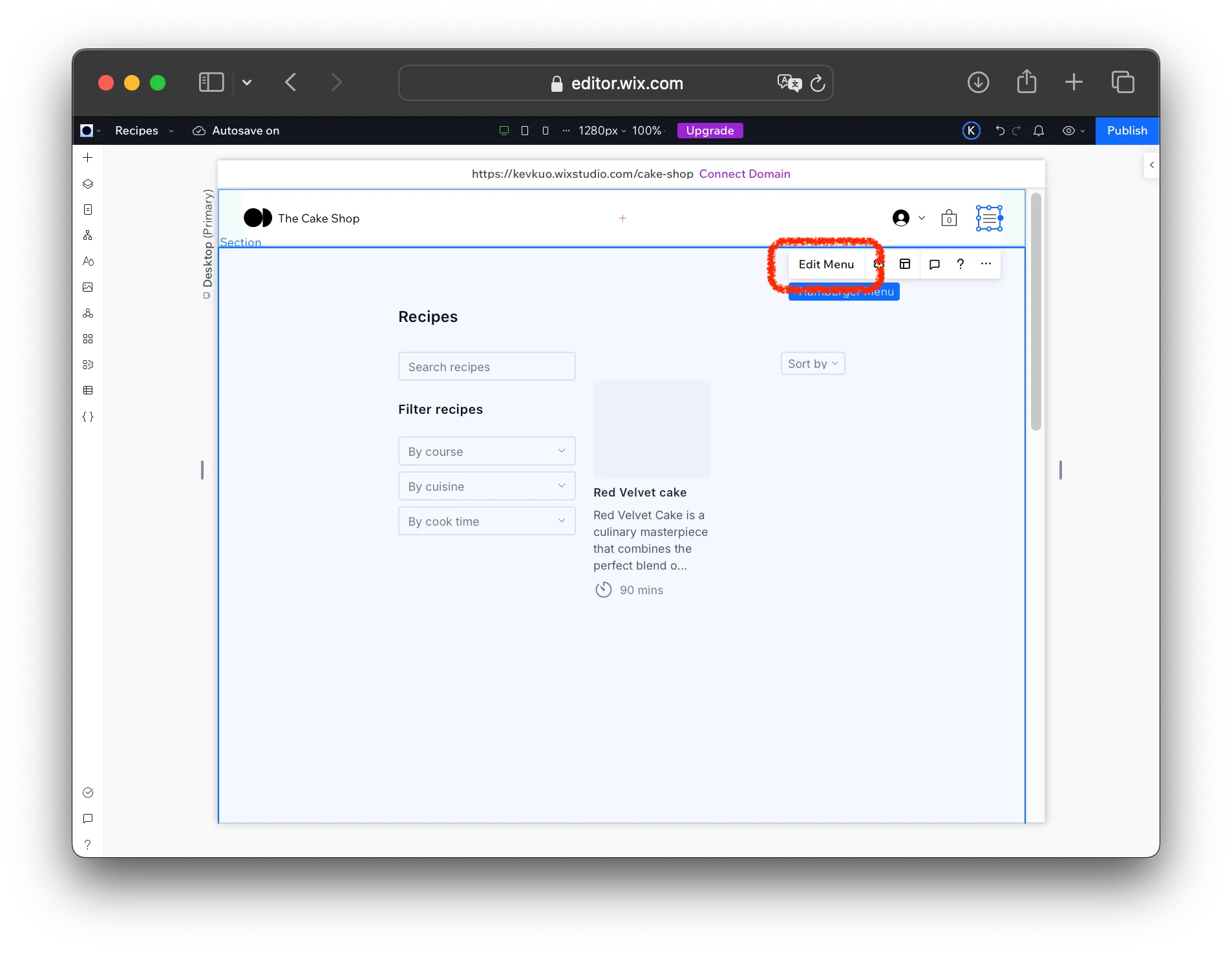
Click on your site’s Menu and select Edit Menu.
-
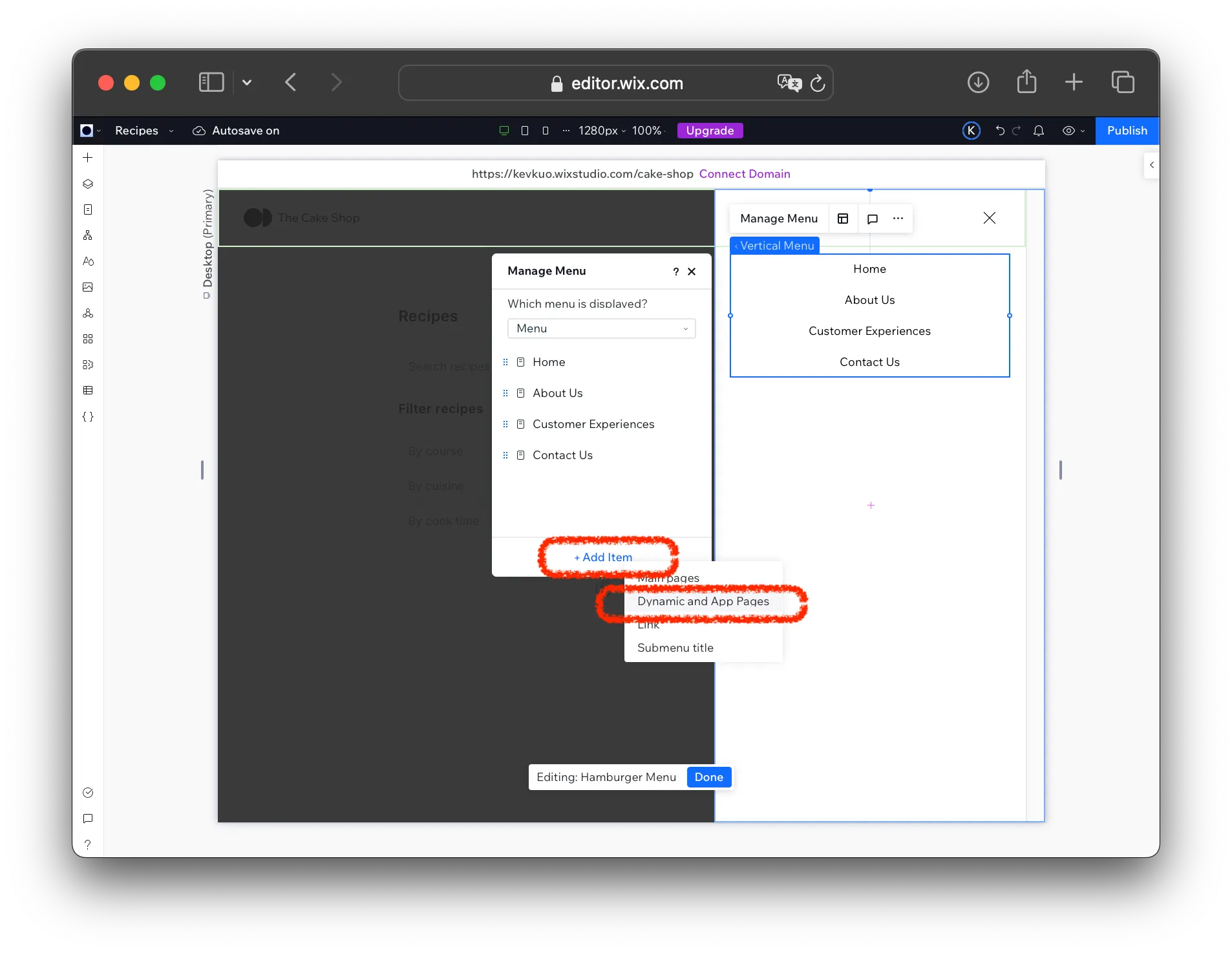
In the Manage Menu dialog:
-
Click Add Item
-
Select Dynamic and App Pages
-
-
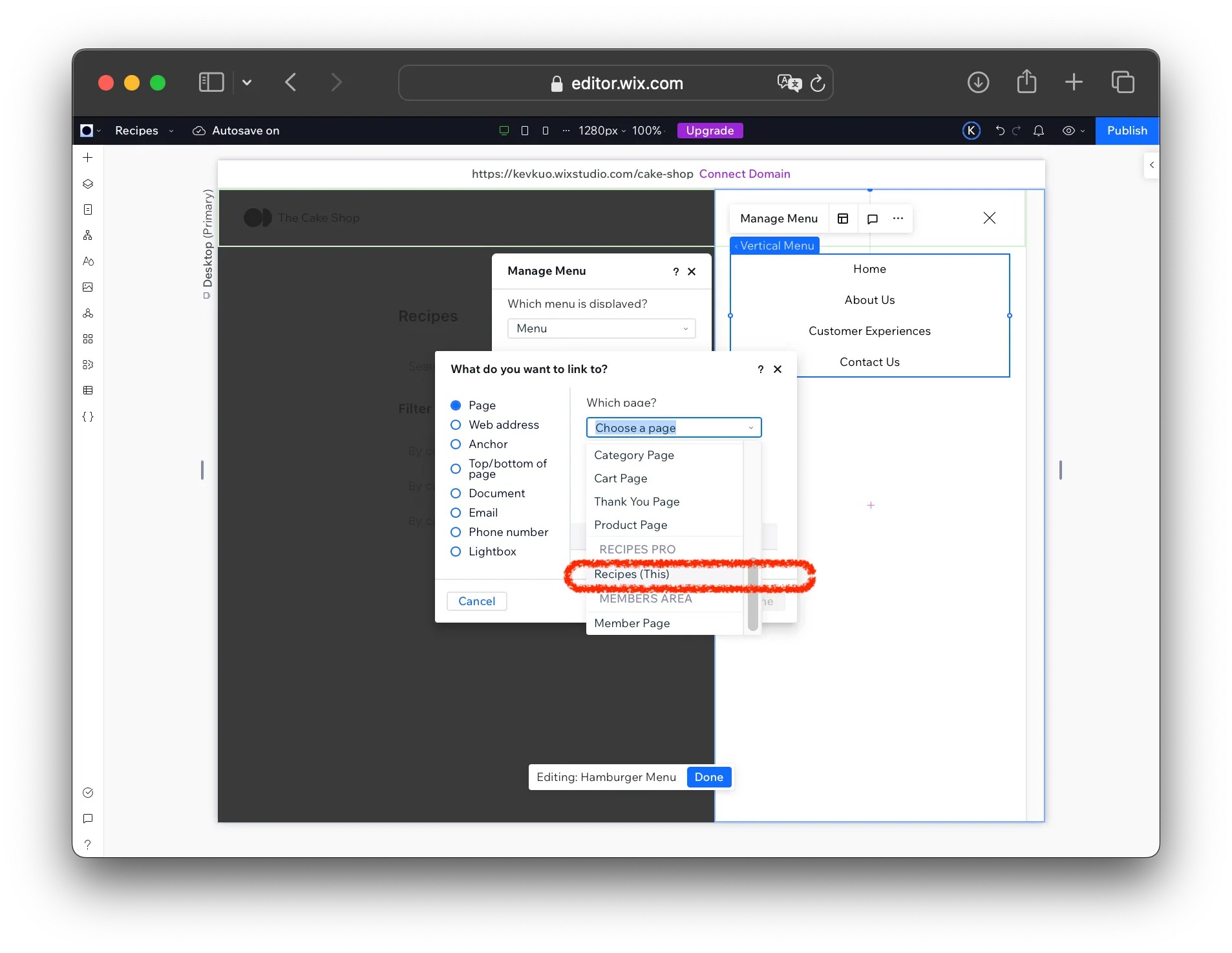
From the Which page? dropdown, choose Recipes under the RECIPES PRO section.
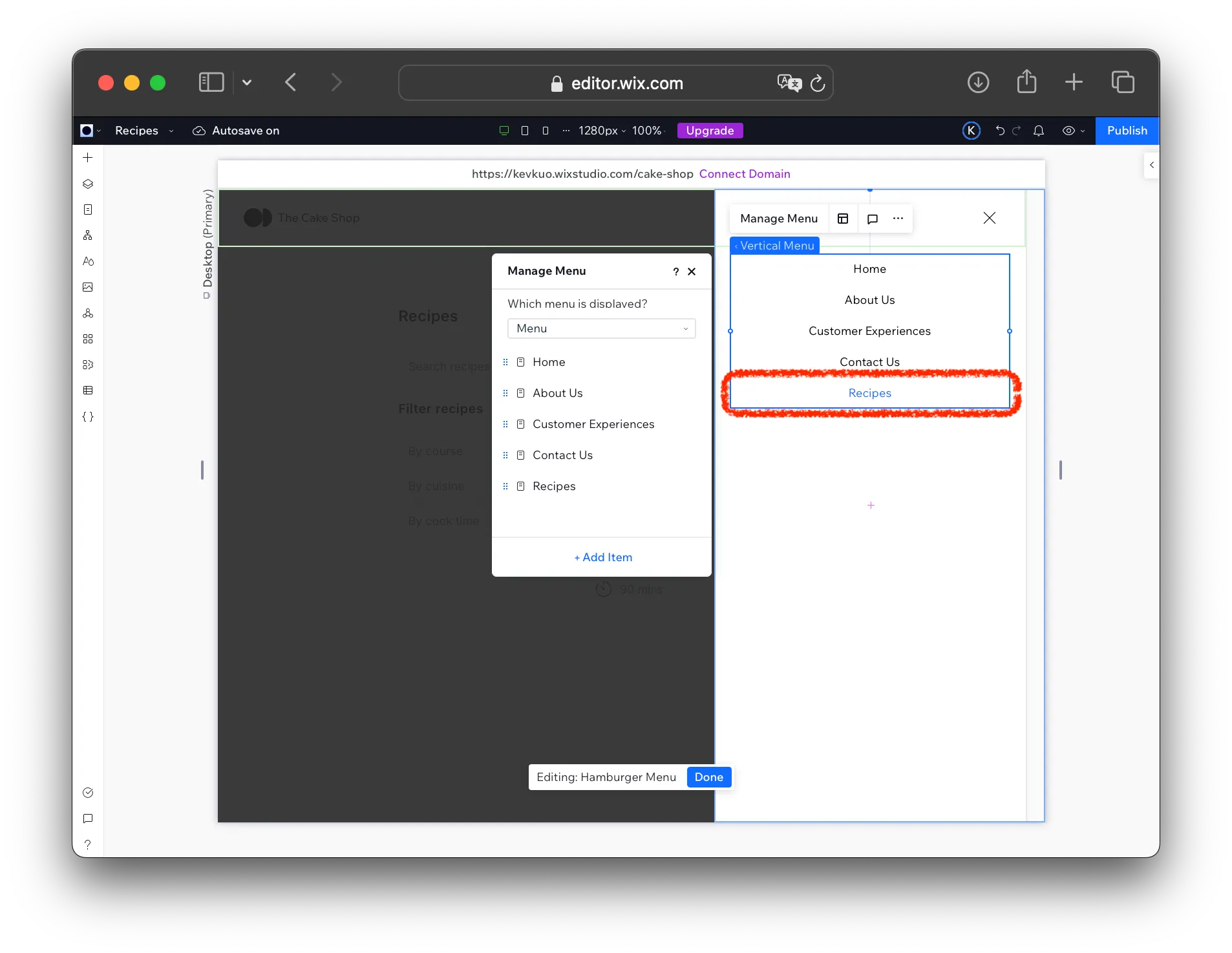
That’s it — the Recipes page is now added to your site menu.
Final Step: Publish Your Changes
Section titled “Final Step: Publish Your Changes”Once you’re happy with how everything looks, click Publish in the Wix Editor.
Great job! Your Recipes Pro widget is now live and ready to wow your visitors.