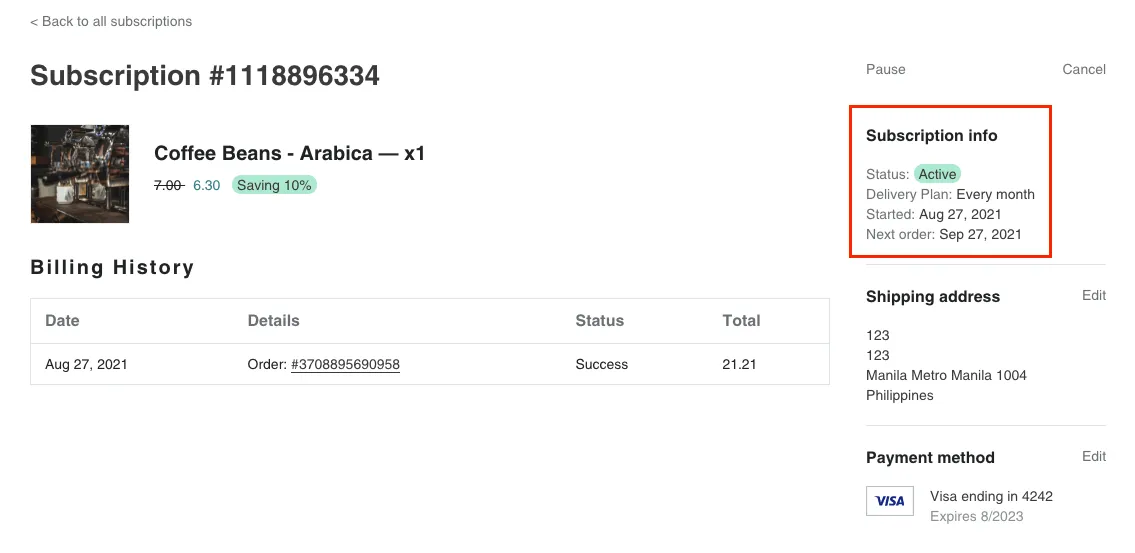
How do I test Propel Subscriptions?
Prerequisite
Section titled “Prerequisite”Make sure that the app has been installed correctly by going through the onboarding process.
How to test?
Section titled “How to test?”Step 1: Make a product available to purchase via subscription.
Section titled “Step 1: Make a product available to purchase via subscription.”- Go to the Products section in your Shopify account.
- Select a product then scroll down to see the subscriptions section. There should be a link there to allow you to add options to make the product available via subscription.
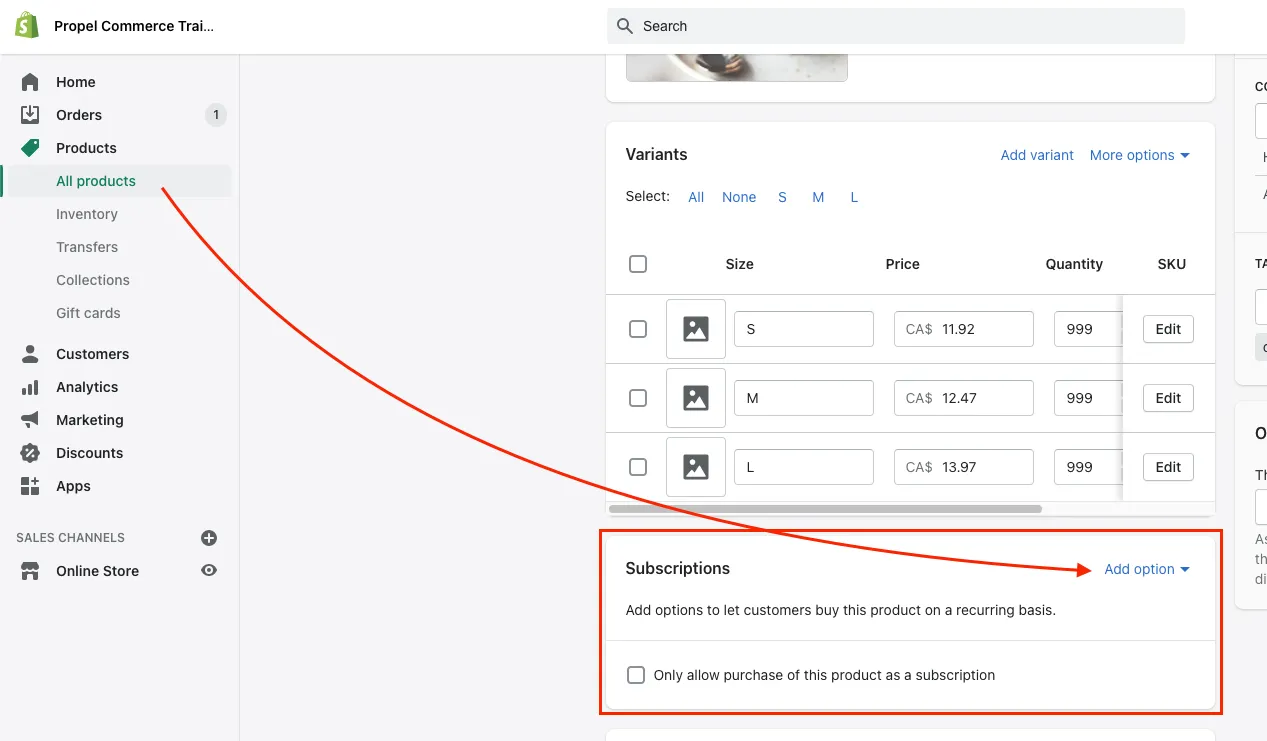
Step 2: Confirm the product is available for purchase via subscription on your storefront.
Section titled “Step 2: Confirm the product is available for purchase via subscription on your storefront.”- For the product you made available for purchase via subscription in step 1, visit that product’s page on your storefront.
- You should see the subscription option now available. Select a subscription plan then add the product to cart.
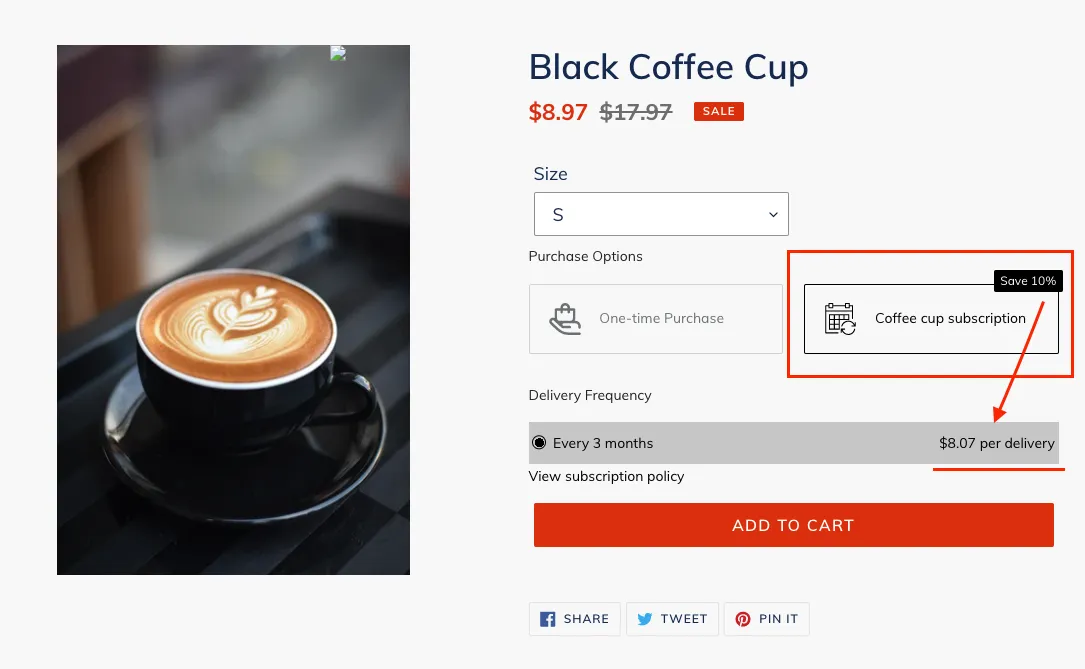
Step 3: Checkout with your test subscription product in cart.
Section titled “Step 3: Checkout with your test subscription product in cart.”Once you’ve completed checkout with a subscription product in cart, there should now be a ‘Manage your subscription’ button on the Checkout Thank You page.
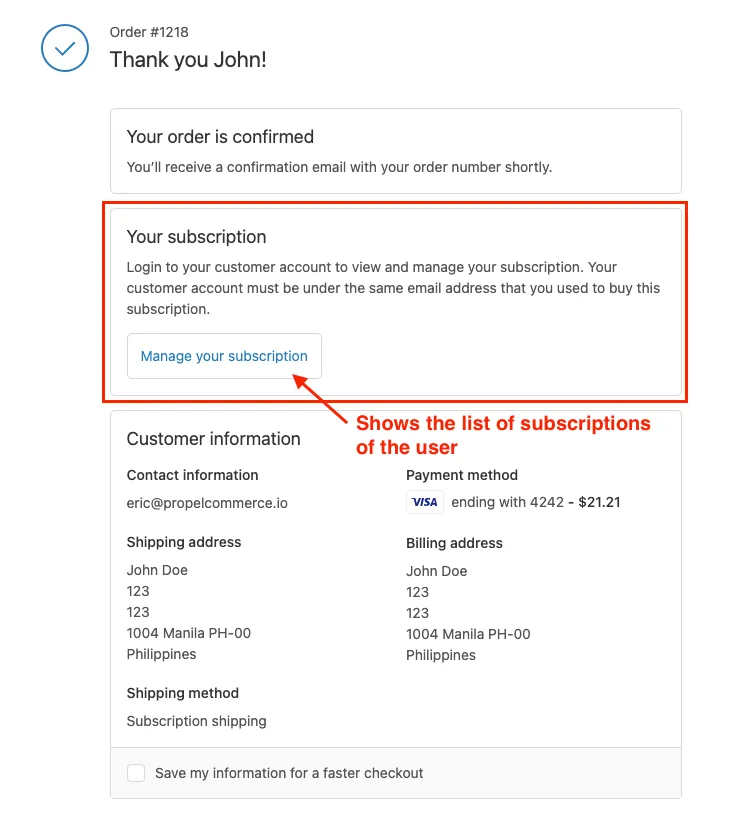
Clicking the button above will redirect you to the subscriptions list in the customer portal page which will be discussed below.
Step 4: Confirm that customers can now manage their subscriptions from the Customer Accounts page on your storefront.
Section titled “Step 4: Confirm that customers can now manage their subscriptions from the Customer Accounts page on your storefront.”- Go to the Customer Account page on your storefront and login. For testing purposes, you should use the same customer account (with the same email address) that you checked out with in step 3 above. (Note: screenshot below is taken from Debut theme)
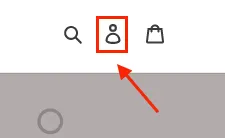
- From the Customer Account page, click the new ‘See my subscriptions’ link. If the ‘See my subscriptions’ link isn’t appearing, please contact support@propelcommerce.io for assistance.
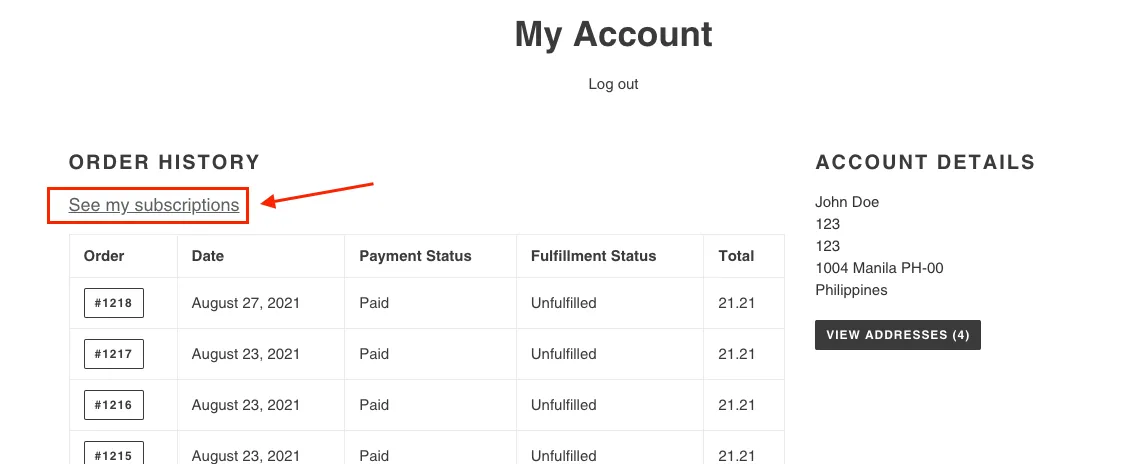
- You should now see a list of your subscriptions
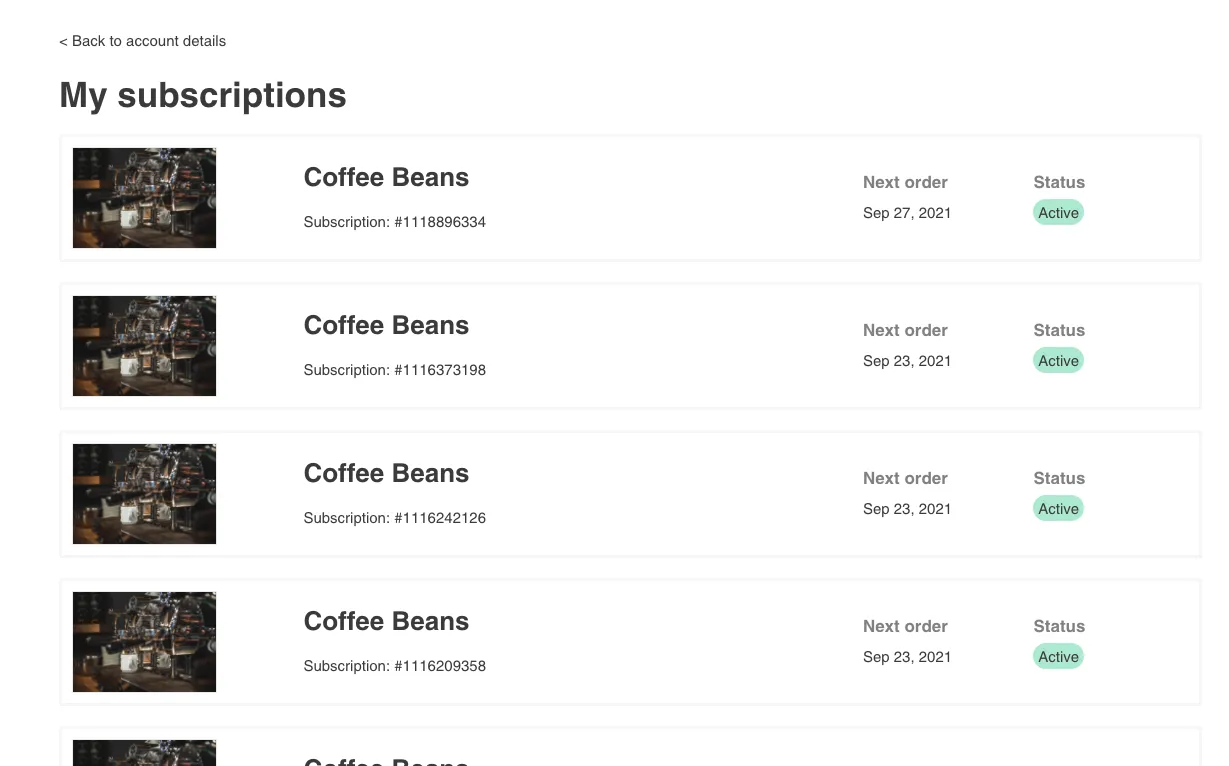
- You can click any of the items in here to view and manage the details of your subscription